A fictional case. Corvana Air does not exist; all identities and values are invented. The simulations recreate the logic of AEP’s Graph Simulation tool as Adobe documents it; they are not screenshots. Documentation checked in November 2026.
Identity settings split collapsed graphs. They do not fix the data that collapsed them.
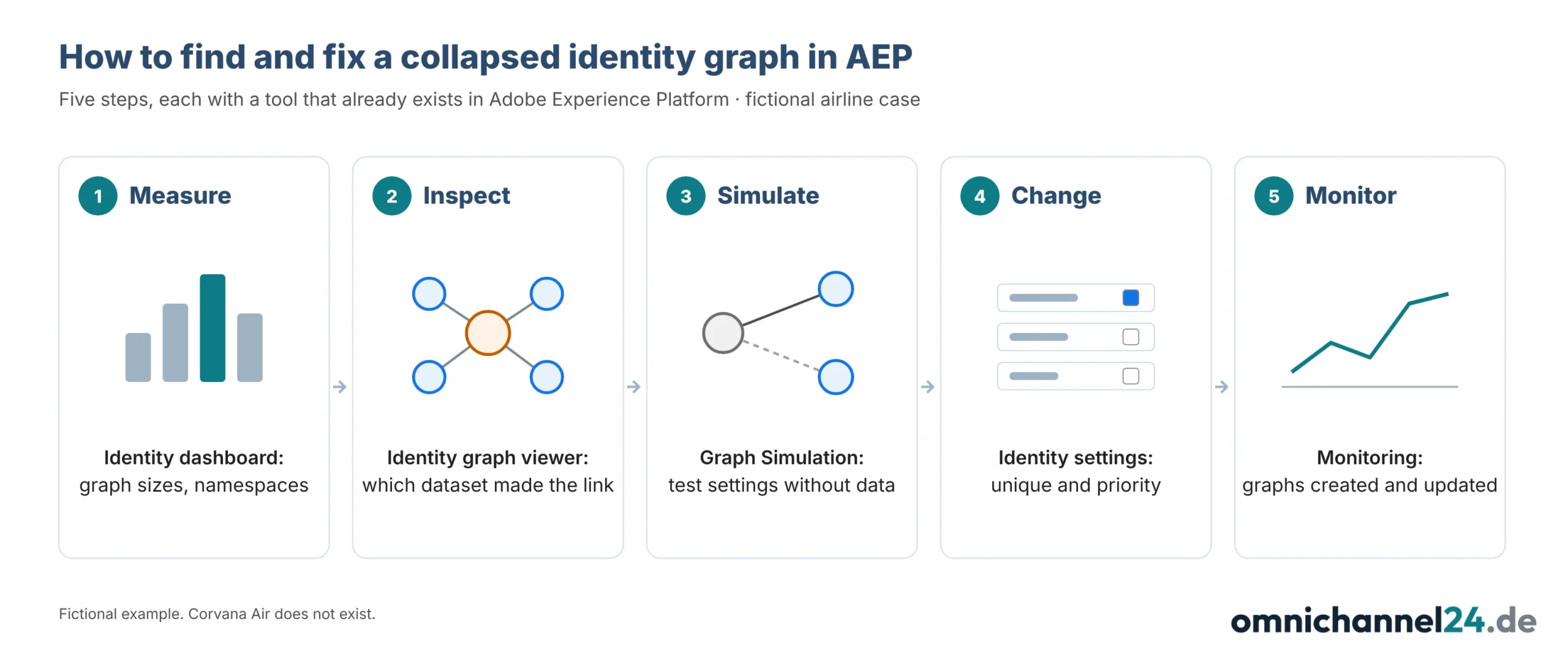
- MeasureThe identity dashboard shows graph sizes and identities per namespace. Look for graphs with more than one person ID.
- InspectThe identity graph viewer shows which dataset and batch created each link.
- SimulateGraph Simulation tests unique namespaces and priorities on invented events. Nothing is saved.
- ChangeIdentity settings apply per sandbox. Collapsed graphs are only corrected when new data updates them.
- MonitorWatch failed and skipped records: events with two top-priority identities are rejected.
30 seconds to here · about 12 minutes for the full guide · jump to the three simulations or changing the settings
- AccessThe Identities workspace in Adobe Experience Platform. Changing identity settings needs the permissions View Identity Settings and Edit Identity Settings.
- CaseThe fictional airline Corvana Air from part one of this series: four million loyalty members, six market sandboxes, bookings arriving as a nightly file.
- RuleSimulate first, change in a reference sandbox second, roll out last.
“Your gate has changed: CV412 now boards at C17.” Corvana Air wants to send this push message to every passenger. With today’s data it would reach the wrong phone: an assistant books her boss’s flights with her own email address, Identity Service links identities that arrive together, and so his bookings, her email and her phone end up in one profile. His upgrade offers already reach her. This guide shows how to find such profiles, test the fix and change the settings without breaking what runs.
An identity graph in Adobe Experience Platform is the set of identities that Identity Service believes belong to one person: a loyalty ID, an email address, a phone number, the browser cookie ID (ECID). A graph collapses when identities of different people end up in one graph. From that moment Real-Time Customer Profile merges them into one profile, and every audience, journey and report treats several people as one.
Adobe names the usual causes: shared devices, invalid email addresses or phone numbers that many users type in, and placeholder values such as user_null. In the fictional Adobe Experience Platform setup of Corvana Air, three causes come from the business itself: an assistant’s email on every booking she makes, a booking reference used as an identity, and one office PC shared by three people.
Step 1: Measure with the identity dashboard
Start with numbers, not with a single customer complaint. Adobe’s implementation guide points to the identity dashboard for identity count, graph count trends, identity count by namespace and graph size. Collapsed graphs are listed under the ellipses menu and View more.
- Graphs with more than one person ID. At Corvana, every graph with two or more Miles IDs is a candidate for P1 or P2.
- Graphs near 50 identities. A graph holds at most 50 identities. When it is full, Identity Service removes identities first-in, first-out by type: the oldest cookie IDs first, then device IDs, then cross-device IDs, email and phone. Namespace priority does not change this order.
- Identity overlap. The Profiles dashboard shows how many profiles contain two selected namespaces, for example Miles ID and email.
- Records skipped. Monitoring › Identities counts records that reached the data lake but not Identity Service, because they carried only one identifier. Anonymous web events with nothing but an ECID end up here: they cannot link to anyone, so they cannot collapse a graph either.
Step 2: Inspect single graphs in the identity graph viewer
In Identities › Identity Graph, enter a namespace and a value. The viewer shows identities as nodes and links as edges, each link with the time it was first established and last updated. Selecting a link shows the dataset and batch ID that created it. A timestamp slider shows earlier versions of the graph. The viewer displays at most 50 identities.
Check: open one collapsed graph and select each link between two person IDs. At Corvana, the dataset behind the PNR links is the nightly booking file. That tells you which export has to change, before anyone touches the settings.
Step 3: Simulate before you change anything
Graph Simulation sits in the Identity Service workspace. You add activities (events with at least two identities each, as namespace:value in text mode, one event per line), then an algorithm configuration: namespaces in priority order, each with or without Unique Per Graph. The result shows the simulated graphs. A solid line is a link that stays, a dotted line a link the algorithm removed, and the number on a line is the order in which the link formed. Load example offers three presets (shared device, invalid phone, bad identity values), and Load › Existing graph pulls in a real graph. Nothing you set up there is saved to the identity settings.
The algorithm behind it replays links, newest first, and removes a link when it would break a rule. Each of the three Corvana problems below runs with three configurations: today, the obvious settings change, and the real fix.
Try it yourself: the free identity graph simulator runs these three cases, three patterns Adobe documents and the booking file in your browser. Change the events, the unique namespaces and the priority, replay the algorithm step by step, compare the graph with and without rules, and see whose phone a message would reach. It is a simplified recreation for learning, not Adobe software.
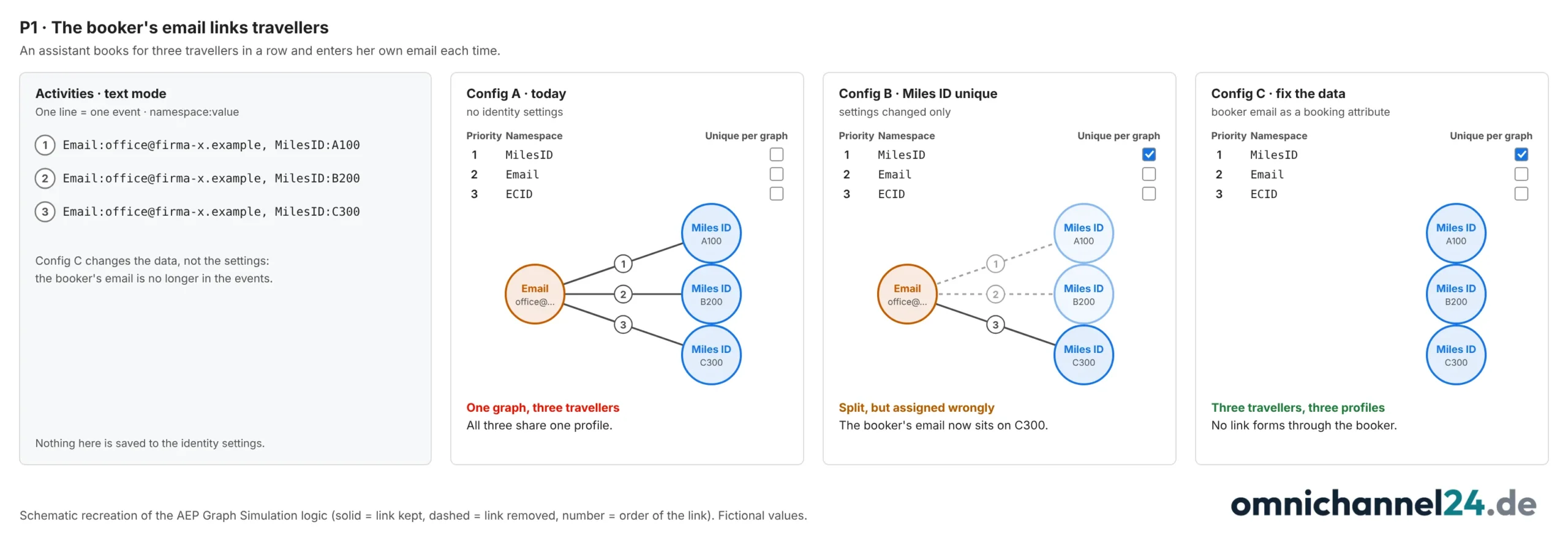
P1, the booker’s email. Marking the Miles ID as unique splits the graph, but the newest link wins, so the assistant’s email now sits on the last traveller she booked for. The real fix is in the data: the booker’s contact belongs on the booking as an attribute, not in the identity map.
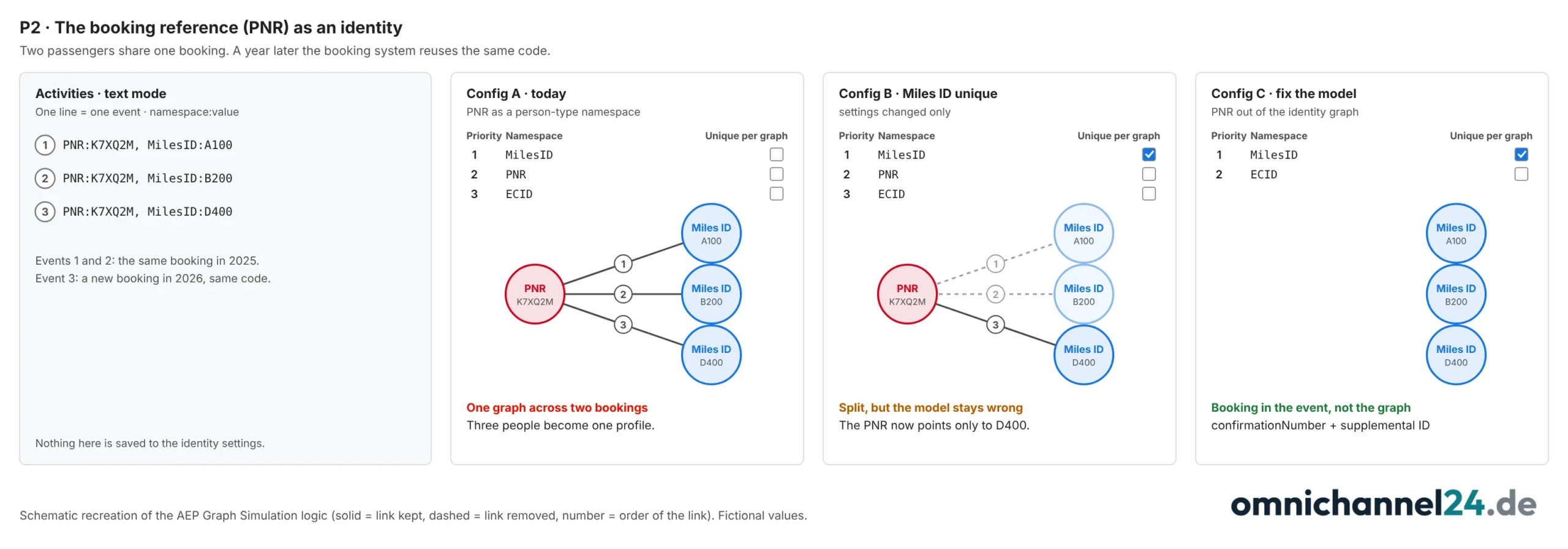
P2, the booking reference. The same pattern: unique settings separate the travellers, but the PNR now belongs to one of them. A booking code describes a booking, not a person. Adobe’s identity type non-people identifier creates no identity graph at all. The PNR goes into the event as confirmationNumber, and journeys that must run per booking use it as a supplemental identifier in Journey Optimizer.
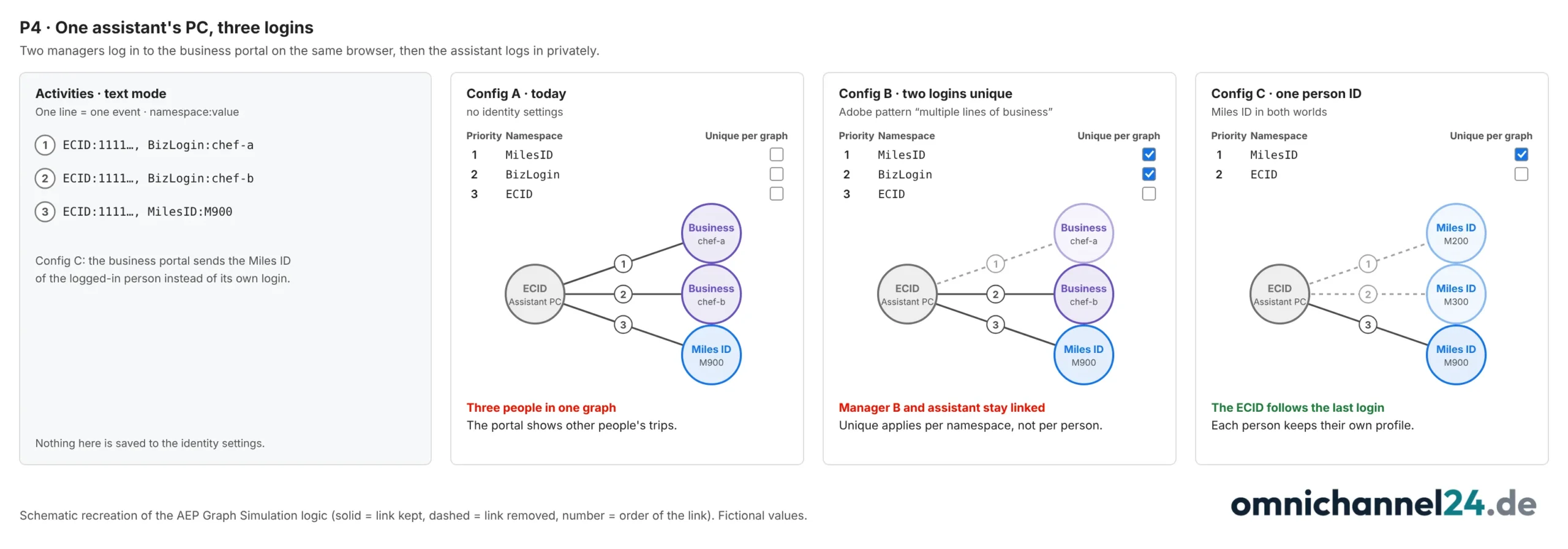
P4, the shared PC. Adobe documents a pattern for users with a personal and a business login: both as unique namespaces. On a shared PC it fails, because “unique” applies per namespace, not per person: the second manager’s business login and the assistant’s private Miles ID can both stay in the graph. Adobe’s own guidance names the cause: if a known profile lacks the highest-priority person namespace, a graph can link different people through one ECID. The fix is one person ID in both worlds. When the business portal sends the Miles ID of whoever is logged in, the ECID simply follows the last login.
The identity matrix: one row per namespace
The simulations turn into a table that becomes the specification for the identity settings:
| Namespace | Type | Role today | Target priority | Unique | Why |
|---|---|---|---|---|---|
| MilesID | Cross-device | one identifier among many | 1 | yes | The only stable person ID. Adobe recommends that the highest-priority namespace is in every known profile. |
| links bookers and travellers | 2 | no | Families and offices share addresses. The booker’s email is no longer sent as an identity. | ||
| Phone (E.164) | Phone | partly unformatted | 3 | no | One format instead of two. |
| BizLogin | Cross-device | its own person ID | – | – | Removed as an identity, see P4. |
| PNR | Cross-device (wrong) | primary identity of bookings | – | – | No identity in the new booking schema. The namespace stays, because namespaces cannot be deleted. |
| ECID | Cookie | primary of web events | 4 | no | Device and cookie namespaces cannot rank above person namespaces or be unique. |
Fix the data first: one booking event, before and after
Today’s nightly export sends one row per booking, with the PNR as primary identity, the booker’s email as an identity and every passenger’s Miles ID in the same event:
{
  "_id": "pss-20261103-000187",
  "timestamp": "2026-11-03T21:14:09Z",
  "eventType": "corvana.booking.created",
  "identityMap": {
    "PNR":     [{ "id": "K7XQ2M", "primary": true }],
    "Email":   [{ "id": "office@firma-x.example" }],
    "MilesID": [{ "id": "A100" }, { "id": "B200" }]
  },
  "reservations": {
    "flightReservations": [
      { "flightNumber": "CV412", "departureAirportCode": "FRA",
        "arrivalAirportCode": "LIS", "departureDate": "2026-11-20T06:40:00Z" }
    ]
  }
}
The target sends one event per passenger, streamed, with the Miles ID as the only person identity. The booking reference stays as a field of the XDM field group Flight Reservation, the booker moves to a custom field group without an identity label:
{
  "_id": "pss-20261103-000187-A100",
  "timestamp": "2026-11-03T21:14:09Z",
  "eventType": "corvana.booking.created",
  "identityMap": {
    "MilesID": [{ "id": "A100", "primary": true }]
  },
  "reservations": {
    "flightReservations": [
      { "confirmationNumber": "K7XQ2M", "passengerID": "1", "loyaltyID": "A100",
        "agentID": "TMC-0042", "flightNumber": "CV412", "departureAirportCode": "FRA",
        "arrivalAirportCode": "LIS", "departureDate": "2026-11-20T06:40:00Z",
        "purpose": "business", "status": "confirmed" }
    ]
  },
  "_corvana": {
    "booker": { "contactEmail": "office@firma-x.example", "role": "assistant" }
  }
}
Why the export must change before the settings: once the Miles ID has the highest namespace priority, Real-Time Customer Profile rejects any event that contains two or more identities of that namespace. Today’s export would start failing the day the settings are saved.
Two schema details that decide the rebuild. Once identity settings are saved, Real-Time Customer Profile takes the primary identity of an experience event from the namespace priority; the primary flag in the identityMap is then only used by other services. And in a schema that is enabled for Profile and already holds data, the primary identity field cannot be changed. The per-passenger feed therefore gets its own schema and dataset. Each event also needs its own _id and a timestamp, which is why the target event above appends the Miles ID to the booking’s _id: events that fail this validation do not reach Profile.
Step 4: Change the identity settings in a reference sandbox
- Where: Identity Service workspace › Settings. Person namespaces and device or cookie namespaces are listed separately. Up to three namespaces can be marked unique per graph.
- Confirm: before saving, you confirm the unique namespaces, that every known profile has the highest-priority namespace, and the priority order, then type the sandbox name.
- Wait: settings can take up to 24 hours to take effect. Adobe’s implementation guide says to wait at least 24 hours before ingesting data, and it assumes a new sandbox without data.
- Existing graphs: graphs that collapsed before the settings were saved are only corrected when new data updates them. To un-collapse an existing sandbox, Adobe refers to the account team or support.
- Event fragments: the primary identity of event fragments already in the profile does not change when the priority changes.
Check before the rollout: the settings apply per sandbox. Corvana has six market sandboxes, so the same settings, schemas and exports have to reach all of them, and a traveller who exists in two markets still exists twice.
Step 5: Monitor what the change did
Monitoring › Identities shows, by default for the last 24 hours, records received, failed and skipped (records with only one identifier), identities added, graphs created and graphs updated. After the change, three numbers matter: failed records (rejected events with two person IDs), graphs updated (old graphs being corrected) and audience sizes, which move when one profile becomes four.
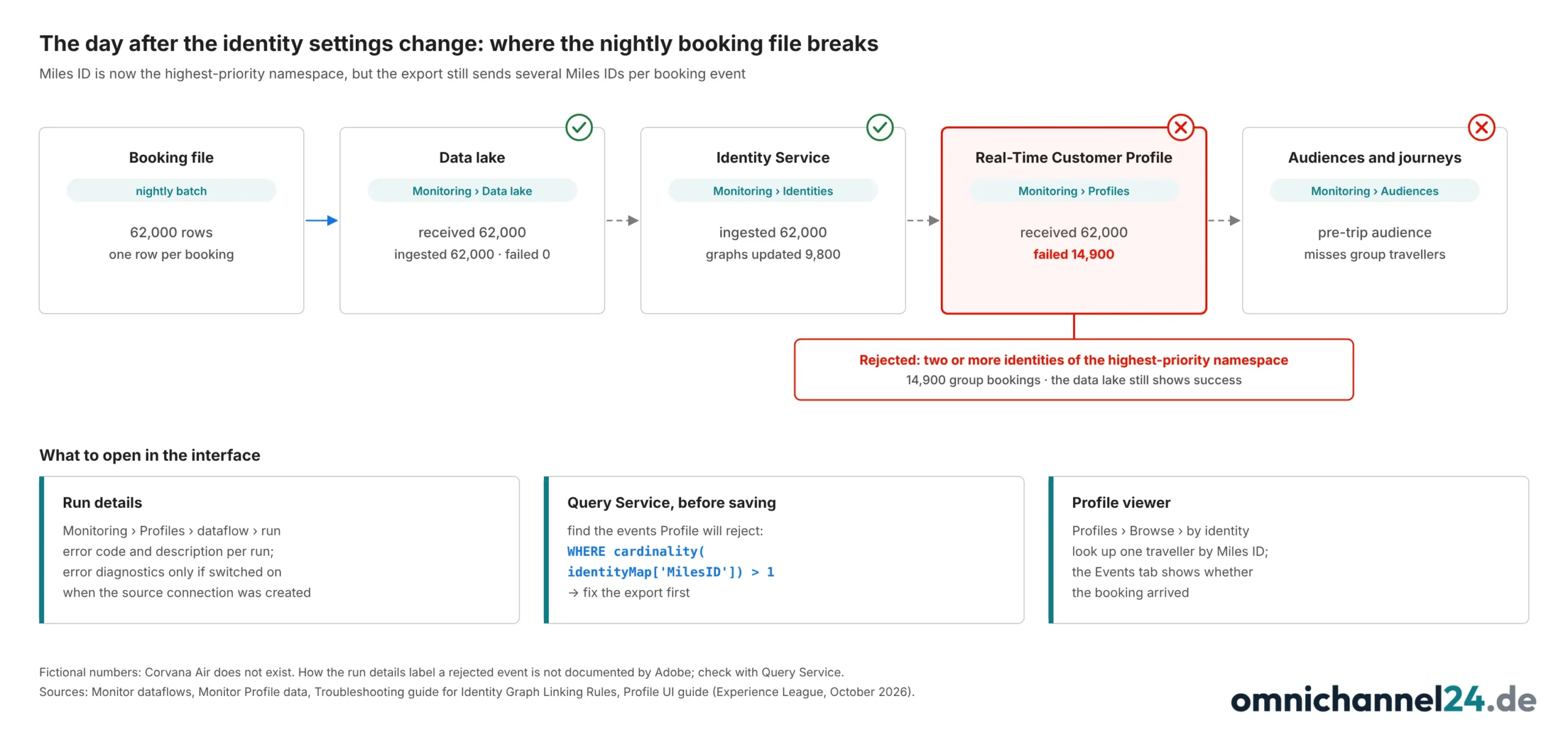
- Monitoring › Profiles. Per dataflow: records received and failed, profile fragments created and updated. A batch that succeeded in the data lake can still fail here. The run details show an error code and description; detailed error diagnostics exist only if they were switched on when the source connection was created, and Experience Platform keeps them for up to 30 days.
- Query Service, before you save. Adobe’s troubleshooting guide uses queries on
identityMapto find duplicate and conflicting identities. The same idea finds every booking event that Profile would reject once the Miles ID has the highest priority (see the query below). - Profile viewer. Profiles › Browse, by identity: pick a merge policy, the namespace MilesID and a value. The Events tab shows the 100 most recent events, the last 48 hours by default and up to 30 days, with a delay of up to 15 minutes.
- Old links do not clean themselves up. Linking rules keep the newer link when a graph is updated. They do not delete the old email from the source system or the data lake. Community advisers on Experience League also warn against using Privacy Service for routine identity clean-up.
-- Booking events that carry more than one Miles ID
SELECT _id, timestamp, identityMap['MilesID'] AS miles_ids
FROM cv_pss_bookings
WHERE cardinality(identityMap['MilesID']) > 1
Check: run the query in the reference sandbox before the settings change and again after the export change. The second result must be empty. Then follow one nightly batch through Monitoring › Data lake, Identities and Profiles: the stage where the count drops is where the problem lives.
What each role should take away
CMOs and heads of CRM. A collapsed graph is not an IT detail. It is the reason an assistant receives her boss’s upgrade offers and the reason audience counts look larger than the customer base.
Architects. Settings are the last step. The order is: measure, find the dataset, simulate, fix the export, then change the settings in a reference sandbox.
Questions people ask about identity graphs in AEP
What is identity graph collapse?
Identities of different people end up in one identity graph, usually through a shared device, a shared or invalid email or phone number, or an identifier that does not belong to a person. Real-Time Customer Profile then merges them into one profile.
Do new identity settings fix existing collapsed graphs?
Only when new data updates those graphs. Graphs that collapsed before the settings were saved stay as they are until then.
Can AEP model a household as one graph?
Not with the identity optimization algorithm: Adobe states that household graphs are not supported at this time.
Part of a series on a fictional airline: how to assess an existing AEP setup comes first; it continues with which Real-Time CDP edition the target needs and how to draw the architecture diagrams. Related: identity resolution in Salesforce Data 360.
Fictional case: Corvana Air and all identities shown are invented. The simulation graphics are schematic recreations, not screenshots of Adobe software. Adobe, Adobe Experience Platform, Real-Time CDP and Journey Optimizer are trademarks of Adobe Inc. This is an independent analysis; no partnership with or endorsement by Adobe.
Sources
- Adobe Experience League — Identity Graph Linking Rules overview
- Adobe Experience League — Graph Simulation UI guide
- Adobe Experience League — Identity graph viewer
- Adobe Experience League — Identity Settings UI
- Adobe Experience League — Identity Optimization Algorithm
- Adobe Experience League — Implementation guide for Identity Graph Linking Rules
- Adobe Experience League — Troubleshooting guide for Identity Graph Linking Rules
- Adobe Experience League — Example graph configurations
- Adobe Experience League — Guardrails for Identity Service data
- Adobe Experience League — Identity namespace overview
- Adobe Experience League — Monitor dataflows for identities
- Adobe Experience League — Profiles dashboard
- Adobe XDM on GitHub — Flight Reservation field group schema
- Adobe Experience League — Namespace priority
- Adobe Experience League — Define identity fields in the UI
- Adobe Experience League — Monitor Profile data
- Adobe Experience League — Monitor data lake ingestion (run details and error diagnostics)
- Adobe Experience League — Real-Time Customer Profile UI guide
- Experience League Community — Does AEP clean up old identity nodes when email or phone change? (July 2026, community answers)