Built hands-on in a Salesforce Data 360 developer org in October 2026, along the Trailhead unit Personalize Your Omnichannel Journeys. All doctors, emails and phone numbers are fictional. Data Cloud is now called Data 360.
The journey is the easy part. Whether it reaches the right doctors is decided before the first email, in how two data sources become one profile.
- BuildCRM contacts from the field team and webinar leads become one profile per doctor in Data 360, then feed an onboarding journey: email, SMS or a task for the field rep, webinar invitation.
- BreakThe matching job reported success. Every webinar lead was missing, because a suggested field mapping used an empty field as the lead’s ID.
- SpotThe only sign: “Matched Source Profiles = 0” in the ruleset list view.
- FixMap the lead’s own ID, use the same field as the owner of its email and phone, rerun. The same doctor now appears once, with both addresses.
- DecideWhich source wins when two disagree is a business decision. Write it down before go-live.
30 seconds to here · about 15 minutes for the full build · jump to where it broke or the steps
- SetupA Salesforce Developer Edition org with Data 360 (Data Cloud) turned on, and admin access. Built in October 2026.
- DataCRM contacts and leads with first name, last name, title, email and mobile number. Webinar sign-ups are stored as leads. All data here is fictional.
- You can rebuildSteps 1 to 5 completely, and step 6 as a configured flow.
- Needs moreRe-entry set to “never” or “after completion” needs the managed package Salesforce Data Cloud – Flow Integration. The SMS hand-off needs a published API activation, which a developer org does not allow. Journeys in Journey Builder need Marketing Cloud Engagement.
A doctor rarely exists only once in a pharma company’s systems. The field team has her in the CRM with the hospital email. The webinar form has her again, sometimes with a private address and a mobile number the CRM never had. Build a journey straight on top of those records and she gets two welcome emails, or one at the wrong address.
This guide follows the path of the Trailhead unit Personalize Your Omnichannel Journeys from the Salesforce Data 360 Consultant trail: bring in the data, unify it, build the audience, pick the channel addresses, orchestrate. I built every step in a developer org with fictional cardiologists. And one step went wrong in a way that is worth more than the rest of the guide.
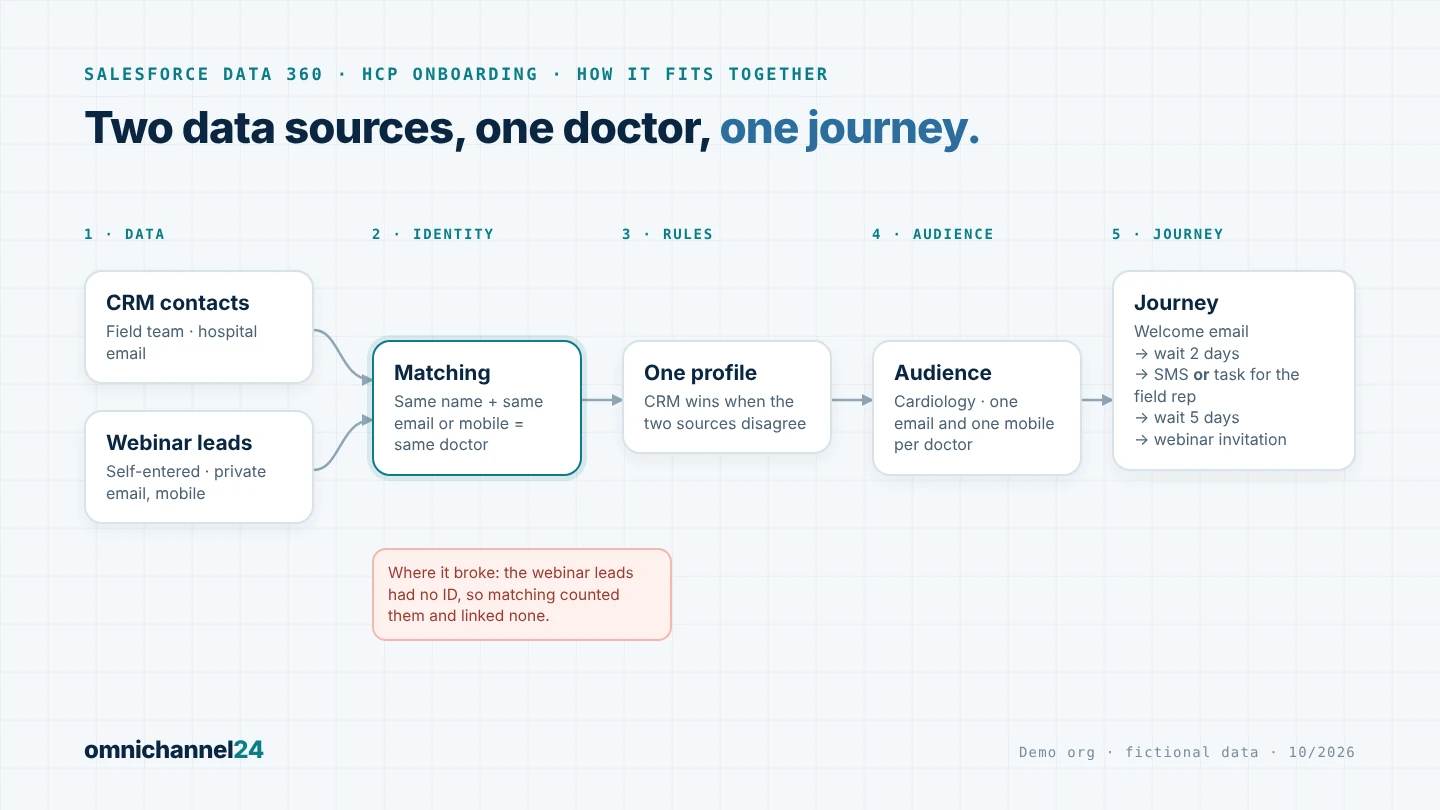
One boundary up front. The Trailhead unit runs the journey in Journey Builder in Marketing Cloud Engagement. A developer org doesn’t include Engagement, so the journey here runs as an Audience Flow in core Salesforce (formerly “segment-triggered flow”). Steps 1 to 5 are the same in both worlds. Step 6 ends where Engagement would take over.
Step 1: Data mapping – bring both sources into Data 360 (formerly Data Cloud)
- CRM contacts: the standard
Contact_Homedata stream already maps Contact to Individual, Contact Point Email and Contact Point Phone. Activate it. - Webinar leads: add Lead as a second Salesforce CRM data stream (category Profile). It starts with no mapped fields, so you map it yourself: Individual (names, title, ID), Contact Point Email and Contact Point Phone.
- Phone numbers: map the mobile number to Formatted E164 Phone Number as well, in both streams. Without it, Data 360 warns that the field is needed for identity resolution, segmentation and activation.
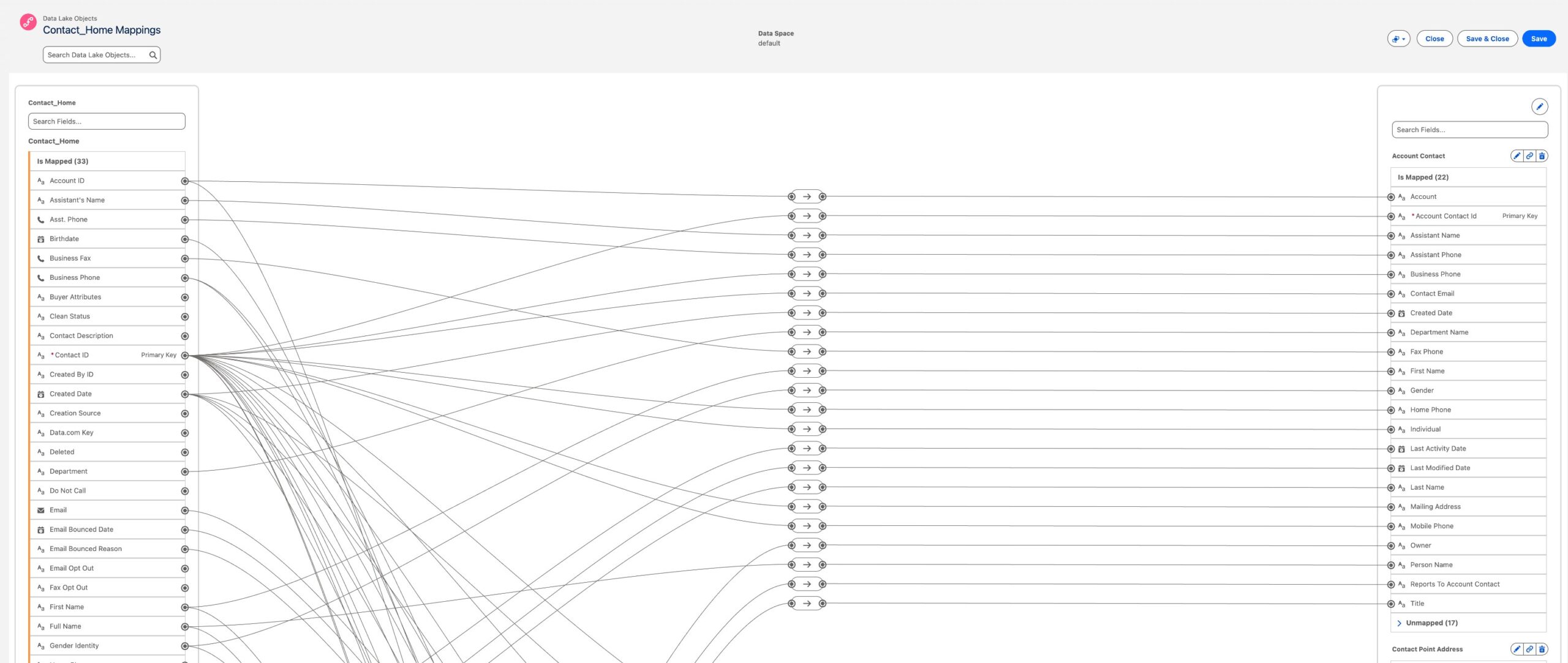
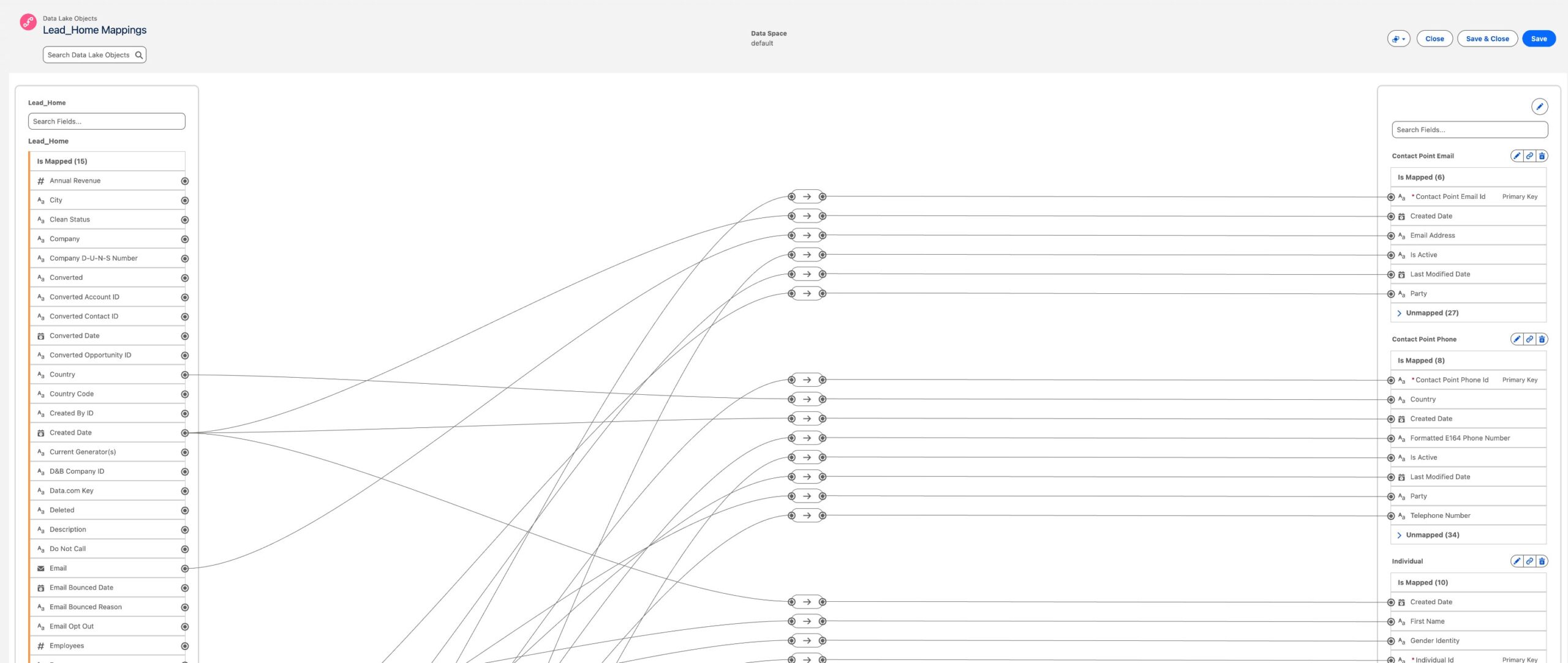
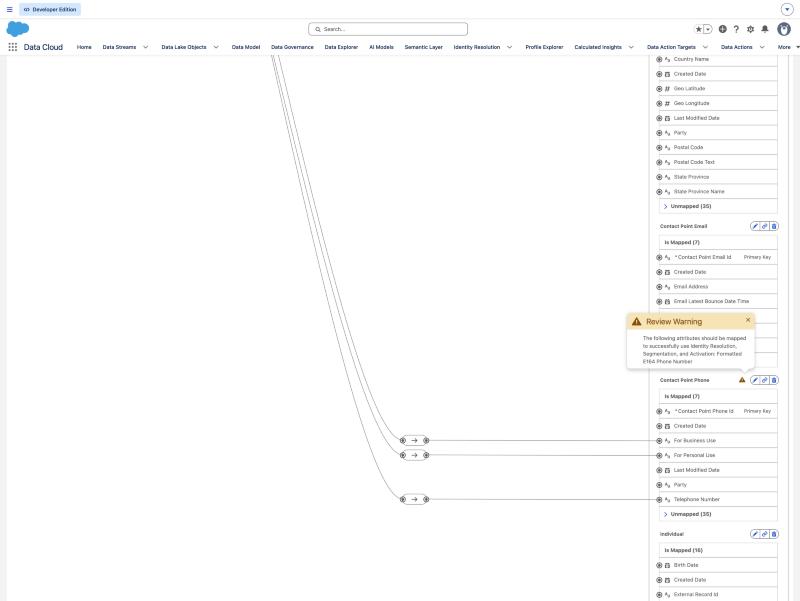
Check: open the Lead_Home mapping. Individual, Contact Point Email and Contact Point Phone all show mapped fields. On both contact points, Party uses the same field as the profile ID. The E164 warning is gone.
Step 2: Identity resolution – teach Data 360 when two records are the same doctor
Identity resolution uses match rules. I created a ruleset on Individual with two rules; either one is enough:
- Name and email: first name fuzzy, last name exact, email exact normalized.
- Name and mobile: the same name criteria plus the E.164 phone number, exact normalized. A rule on the plain phone field with “exact” is rejected (“More match criteria are required”).
| Doctor (fictional) | CRM (field team) | Webinar form | Matched by |
|---|---|---|---|
| Dr. Anna Becker | hospital email | same hospital email | name + email |
| Dr. Jonas Weber | hospital email + mobile | private email + same mobile | name + mobile |
| Dr. Lea Hoffmann | hospital email, no mobile | same email + mobile | name + email |
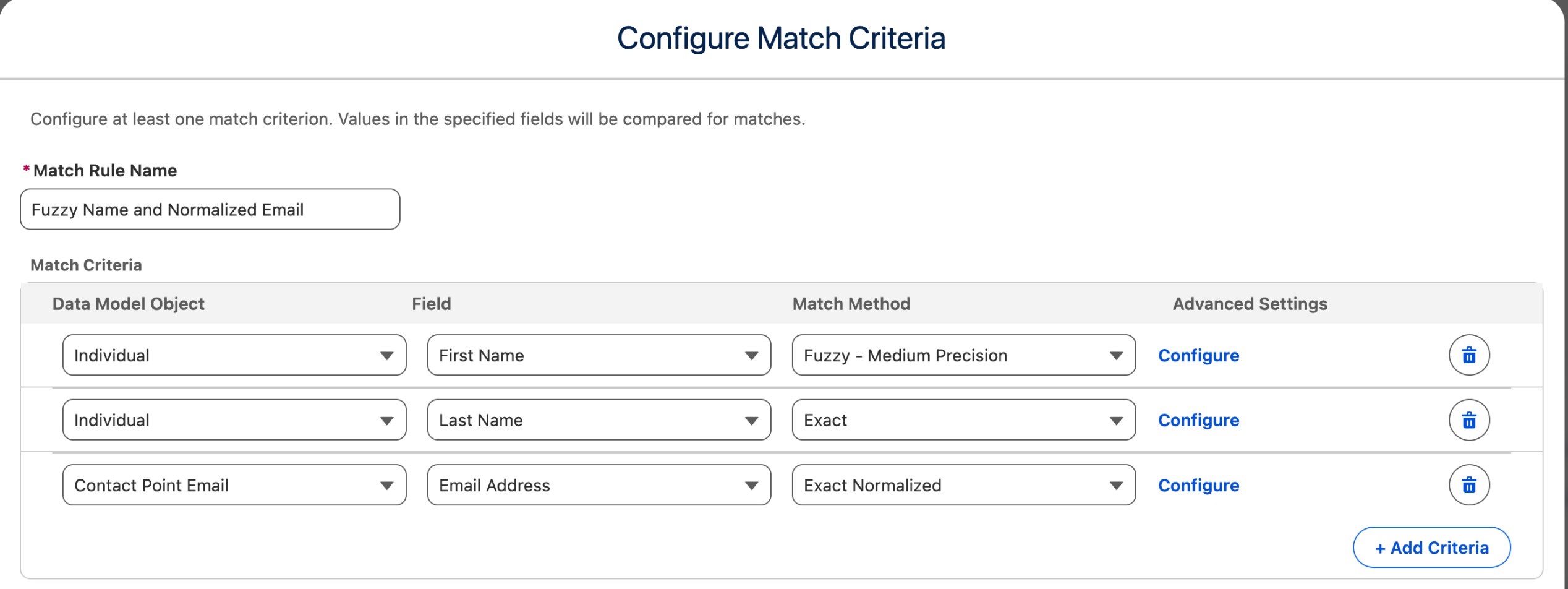
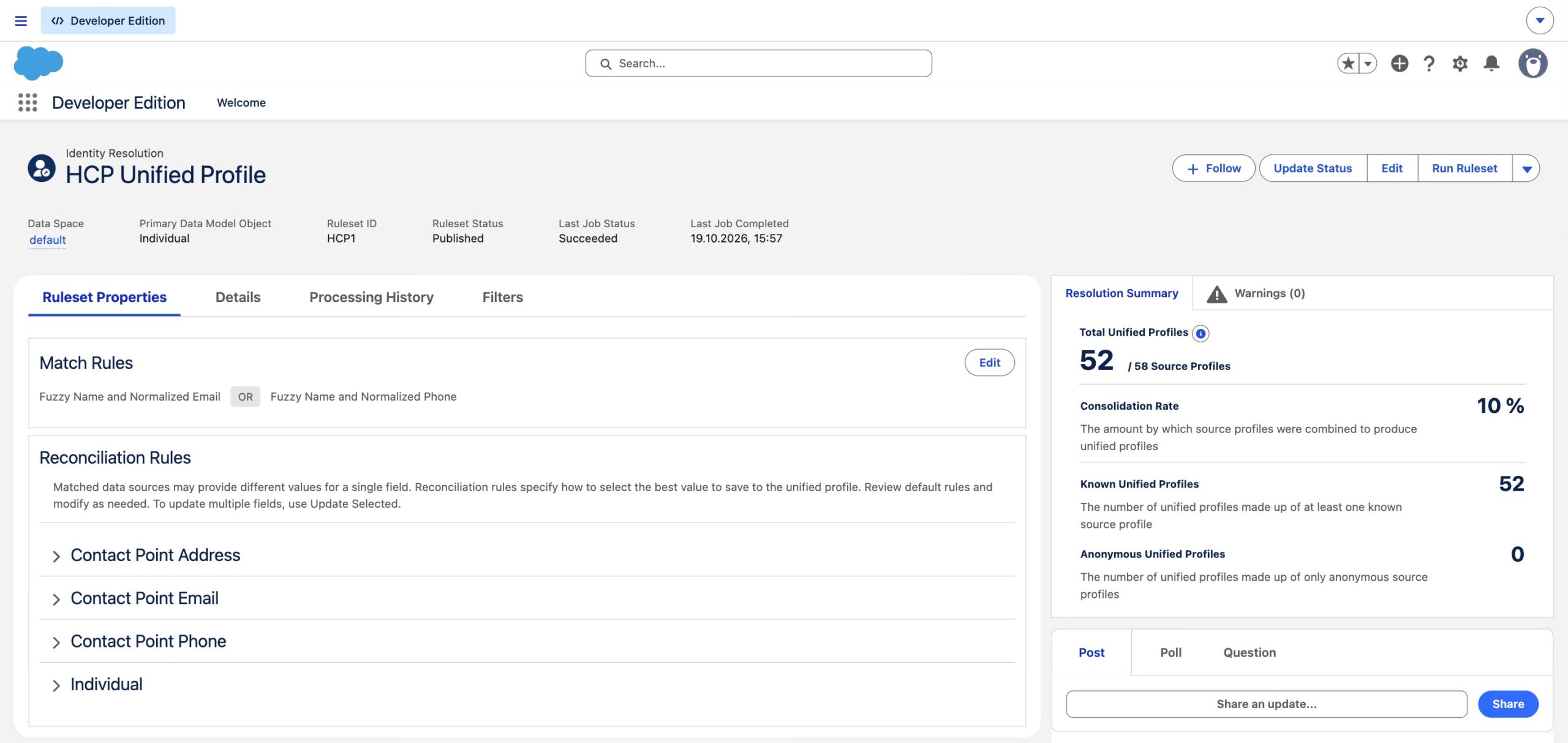
Why name plus email or mobile, not name alone: Two doctors with the same name at different hospitals are common. Asking for a second identifier keeps wrong merges rare. In pharma, a wrong merge sends one doctor’s material to another, and that is worse than a missed merge.
Check: after the run, open the ruleset list view and look at Matched Source Profiles, not only at the total. It must be above 0. Then open a doctor who exists in both sources in Profile Explorer. Under Related, Unified Link must list two source records.
Where it broke: the run said success
The first runs finished without a warning. The summary showed 30 unified profiles from 58 source records. That looks like a normal consolidation. It wasn’t. In the ruleset list view, one column said Matched Source Profiles: 0. In Profile Explorer, Dr. Weber had exactly one source: the CRM. Not a single webinar lead was linked to anything, and the webinar-only doctors had no profile at all.
The cause sat in the lead mapping. The suggested mapping had put Lead’s Individual ID field on the profile’s ID. That field is the lookup to Salesforce’s consent object Individual, and in most orgs it is never filled. So every webinar lead arrived in Data 360 without an ID. The ruleset counted them as source records and linked none of them. The journey would have run anyway, just without them.
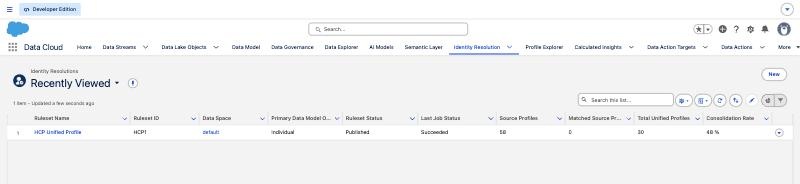
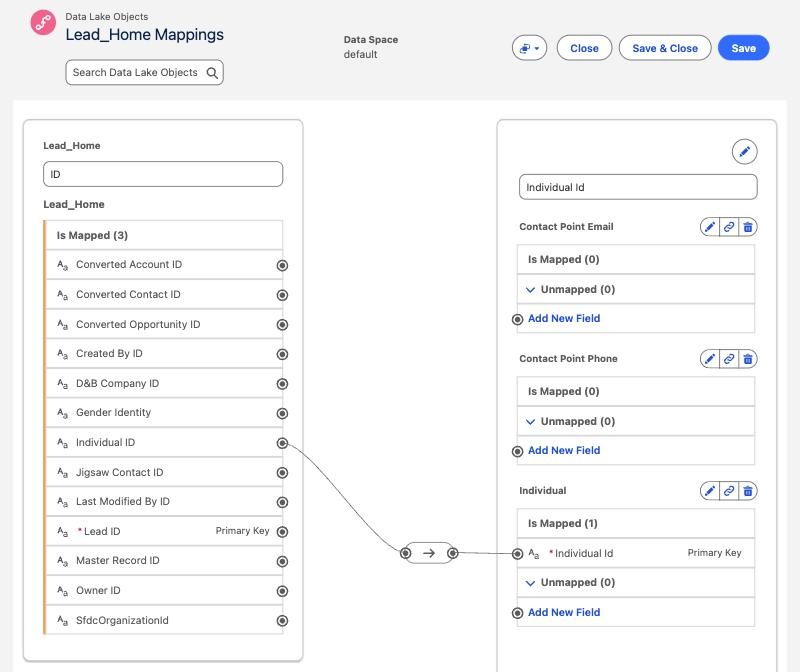
Map the lead’s own Lead ID to the profile ID. Use the same field as Party on the lead’s email and phone, so the contact points hang on the right profile.
There, switching a primary-key mapping is blocked (“Switch Mapping is not supported on Developer Edition Org”). So I filled Lead.IndividualId with Individual records and pointed Party at that field. Then I ran a full refresh and a new ruleset run. This workaround is for demonstration only.
- Before30 unified profiles from 58 source records. Every webinar lead was ignored: doctors in both systems had only their CRM data, and webinar-only doctors had no profile at all.
- After52 unified profiles from 58 source records. Six doctors exist in both systems and are now merged (58 − 6 = 52). The webinar-only doctors have their own profile.
More profiles is the better result here. The lower number came from leads being dropped, not from better merging.
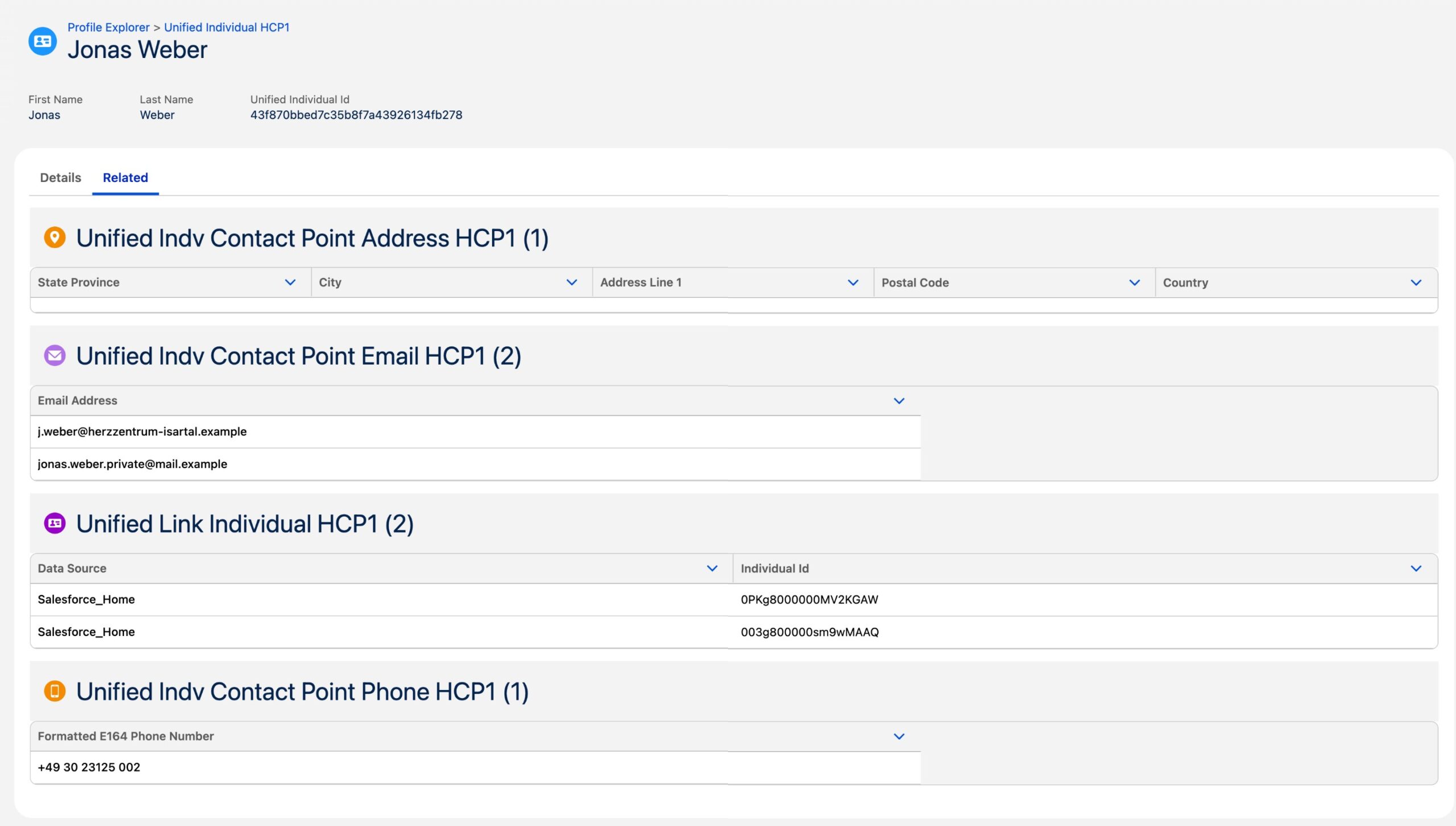
The lesson for anyone signing off a journey: “Succeeded” means the job ran. It does not mean the audience is right. Check matched records per source, not only the total.
Step 3: Decide which source wins
Two records, two values: which one goes on the profile? Reconciliation rules answer that per field. I set Individual to source priority: CRM contacts first, webinar leads second, and set the ID field explicitly too, because the ruleset warns until it has a supported rule. In plain words: the field team’s record outranks a self-entered web form.
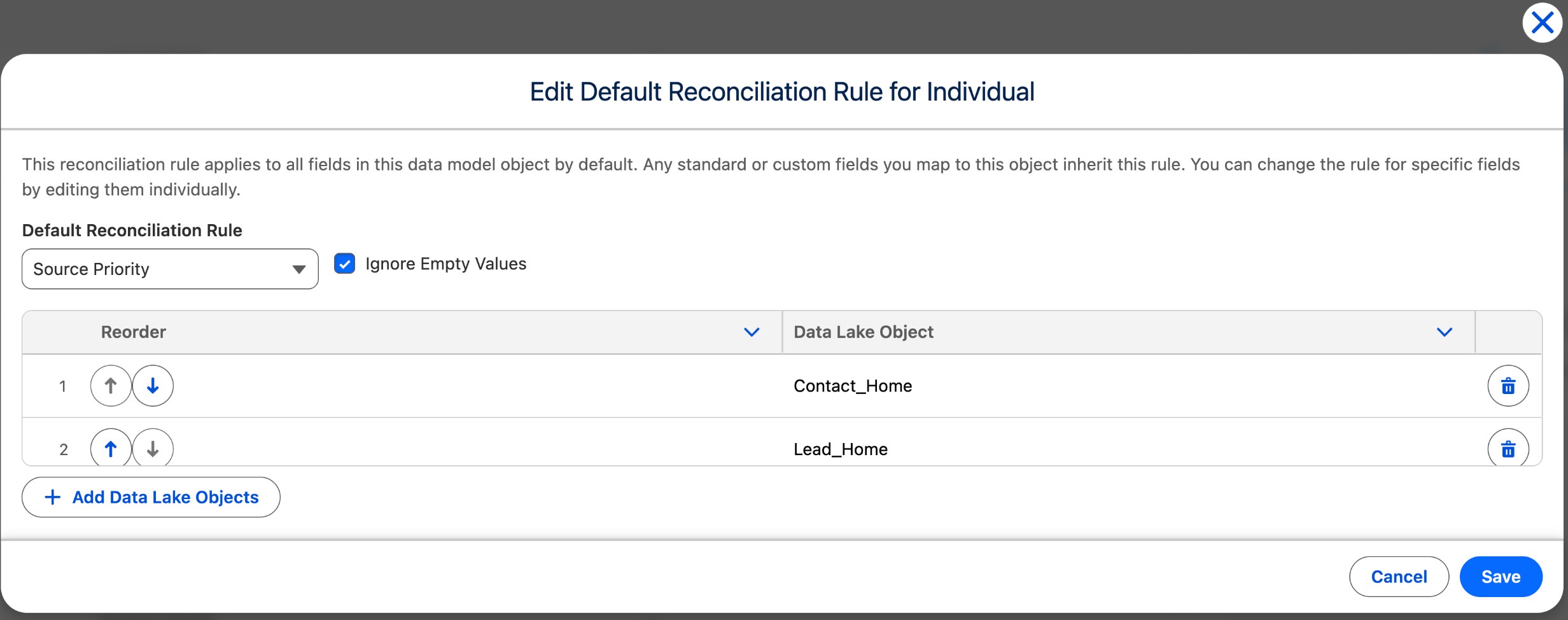
Why the CRM wins: The field team’s record is maintained and checked during visits. A webinar form is typed in by the doctor, often in a hurry. I would change that for fields the doctor knows best, such as a new mobile number. There I’d use “last updated” instead of source priority.
Check: in the ruleset, expand Individual under Reconciliation Rules. The default rule shows Source Priority, with Contact_Home first and Lead_Home second.
Step 4: Build the audience
A standard segment on the unified profiles with one rule: Title contains “Cardio”. After the fix the population went from 5 to 6, because a cardiologist who only exists in the webinar data now counts too.

Check: the population matches what you expect from the source data. Here it is 6, including a cardiologist who exists only in the webinar data. If webinar-only doctors are missing, go back to step 2.
Step 5: Pick one email and one mobile per doctor
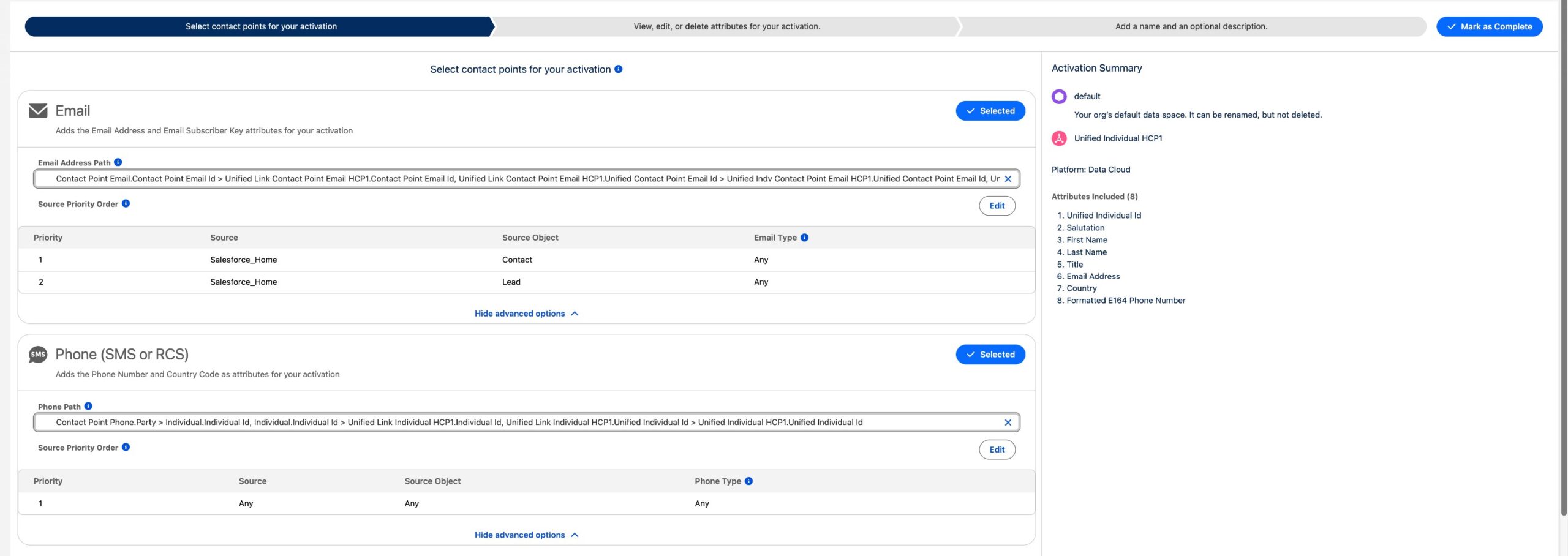
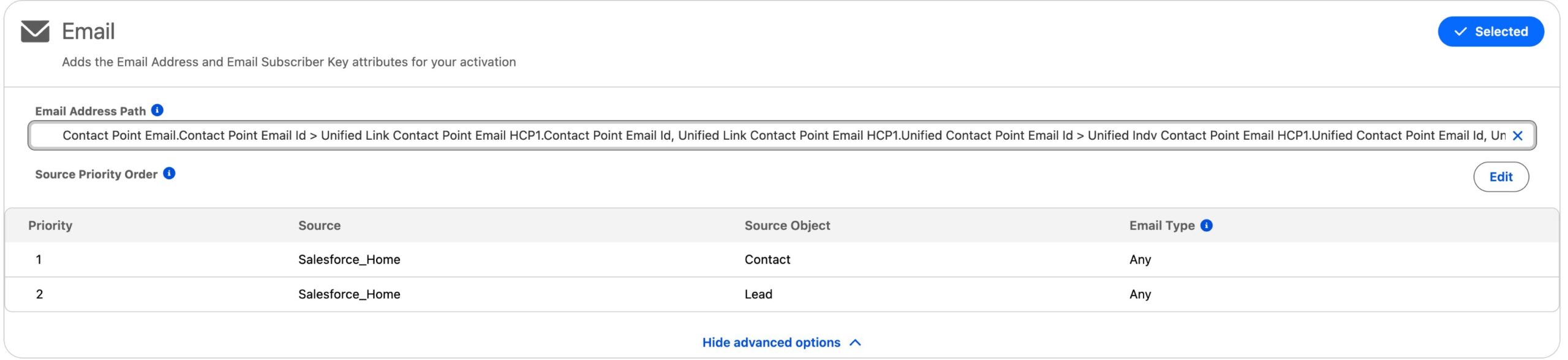
This is the step most journey projects underestimate. One profile can carry several addresses. The activation decides which one the journey gets. I created a template activation on the unified profiles with two contact points, Email and Phone (SMS), and set the email source priority: CRM contact first, webinar lead second. Salutation, first name, last name and title come along for personalization.
For a doctor like Dr. Weber, with a hospital address in the CRM and a private one from the webinar, the hospital address wins. That ranking is a business decision, not a technical one. It decides whether the email lands in the clinic inbox or on a phone in the evening.
In Marketing Cloud Engagement, the same decision happens when you activate the segment to Engagement: the activated data extension becomes the journey’s entry source.
Why one profile is not enough: A unified profile keeps every address it found. The journey still needs exactly one per channel, and that choice decides whether the email reaches the clinic inbox or a private phone in the evening. That’s why I set the priority in the activation, not only in the profile.
Check: the activation summary lists Email Address and Formatted E164 Phone Number. The email source priority shows Contact before Lead.
Step 6: Orchestrate the journey
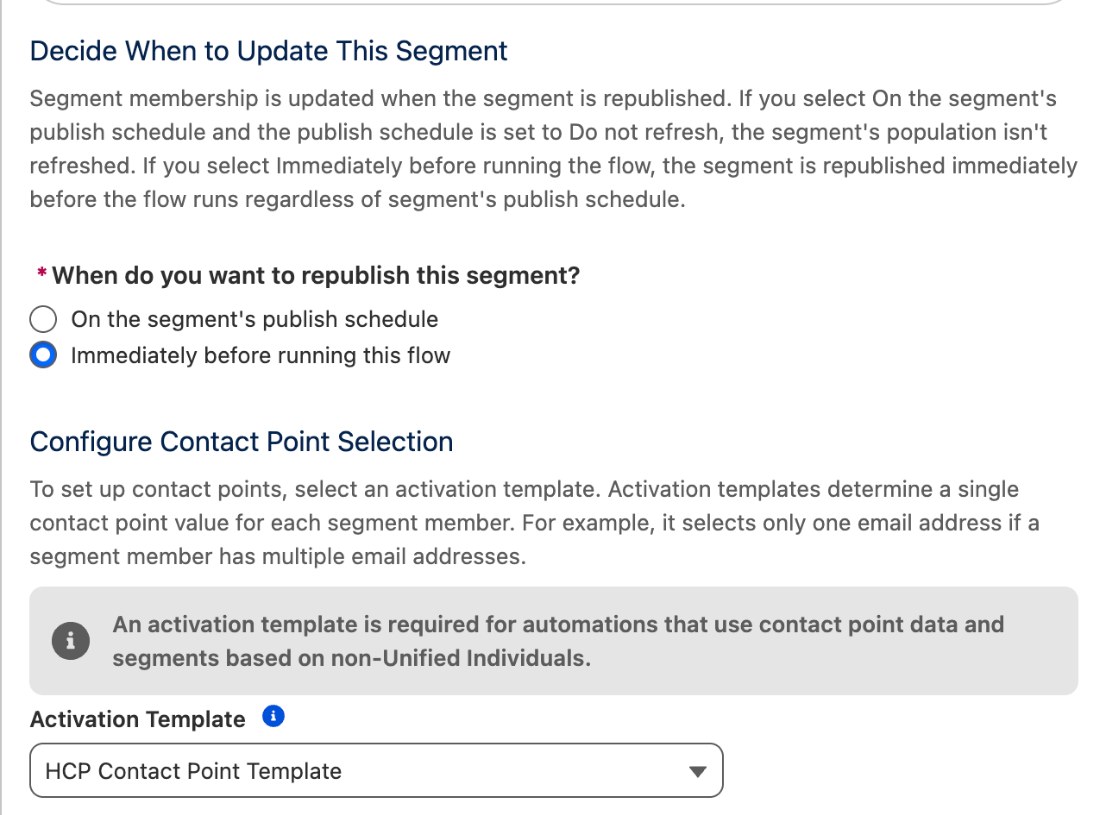
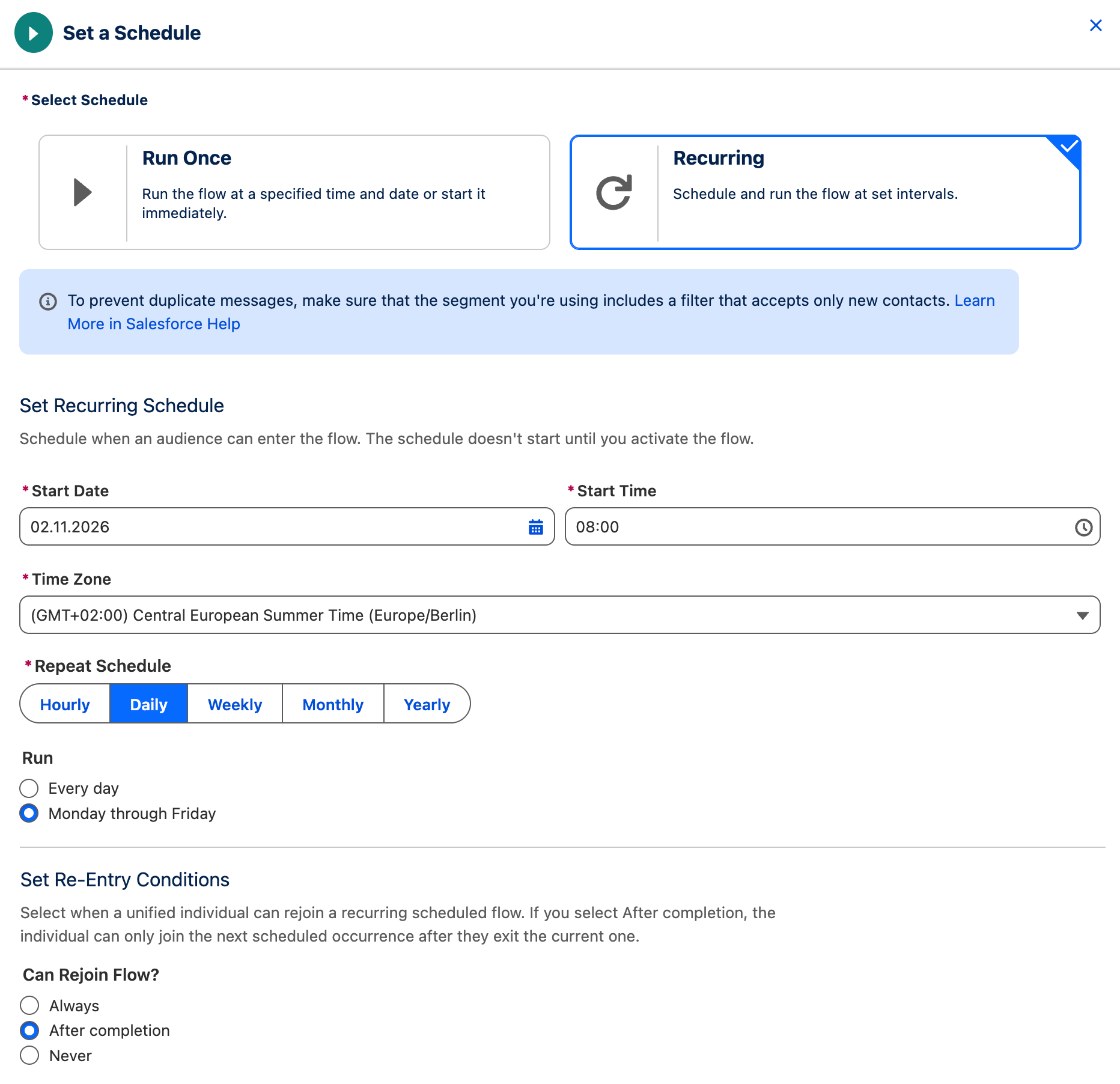
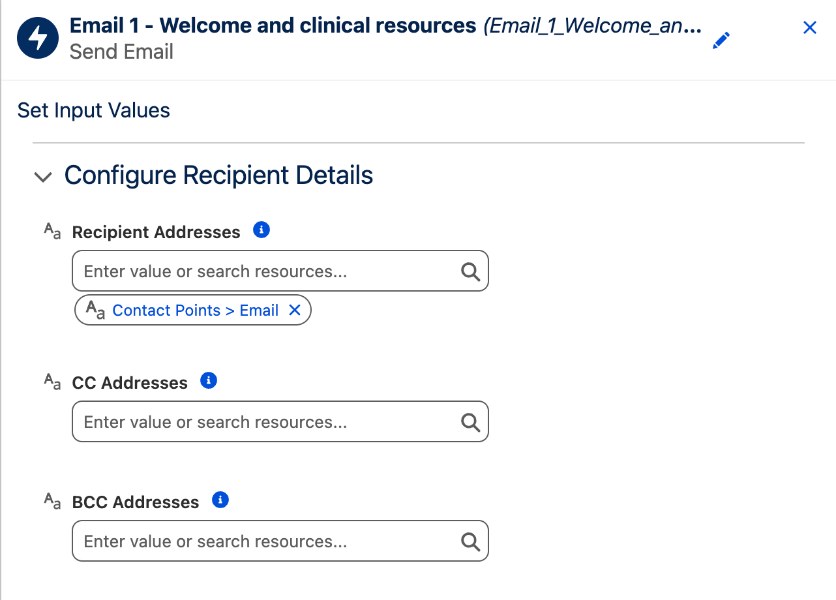
In Flow Builder: new Audience Flow on the segment, republished right before each run, with the activation template selected at the start. Only then does Flow Builder offer the doctor’s chosen email and phone as resources. Schedule: weekdays at 08:00, Berlin time.
- Welcome email with clinical resources, sent to the chosen email address, with salutation and last name from the profile.
- Wait 2 days.
- Which channel next? Mobile number known: SMS reminder, handed to the SMS channel through a Data 360 activation. Only for doctors with SMS consent for that number (see step 7). No mobile: a task for the field rep to plan an intro visit.
- Wait 5 days.
- Webinar invitation by email.
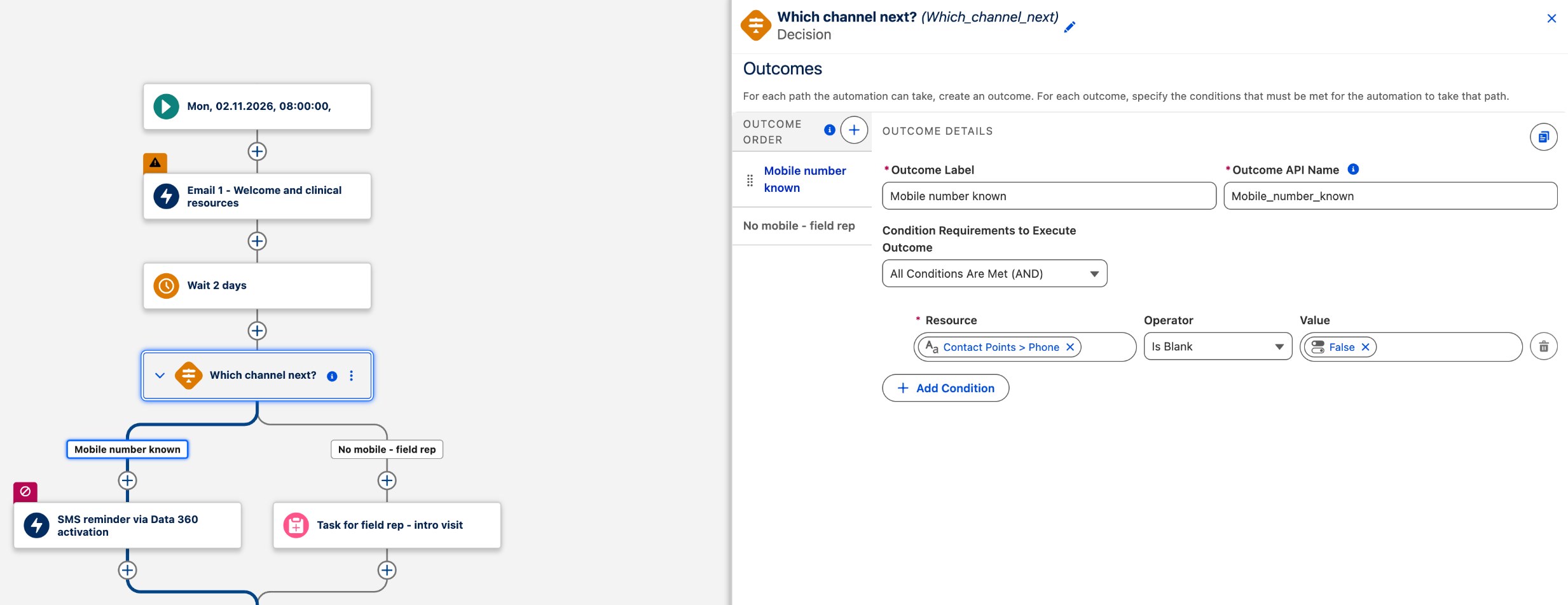
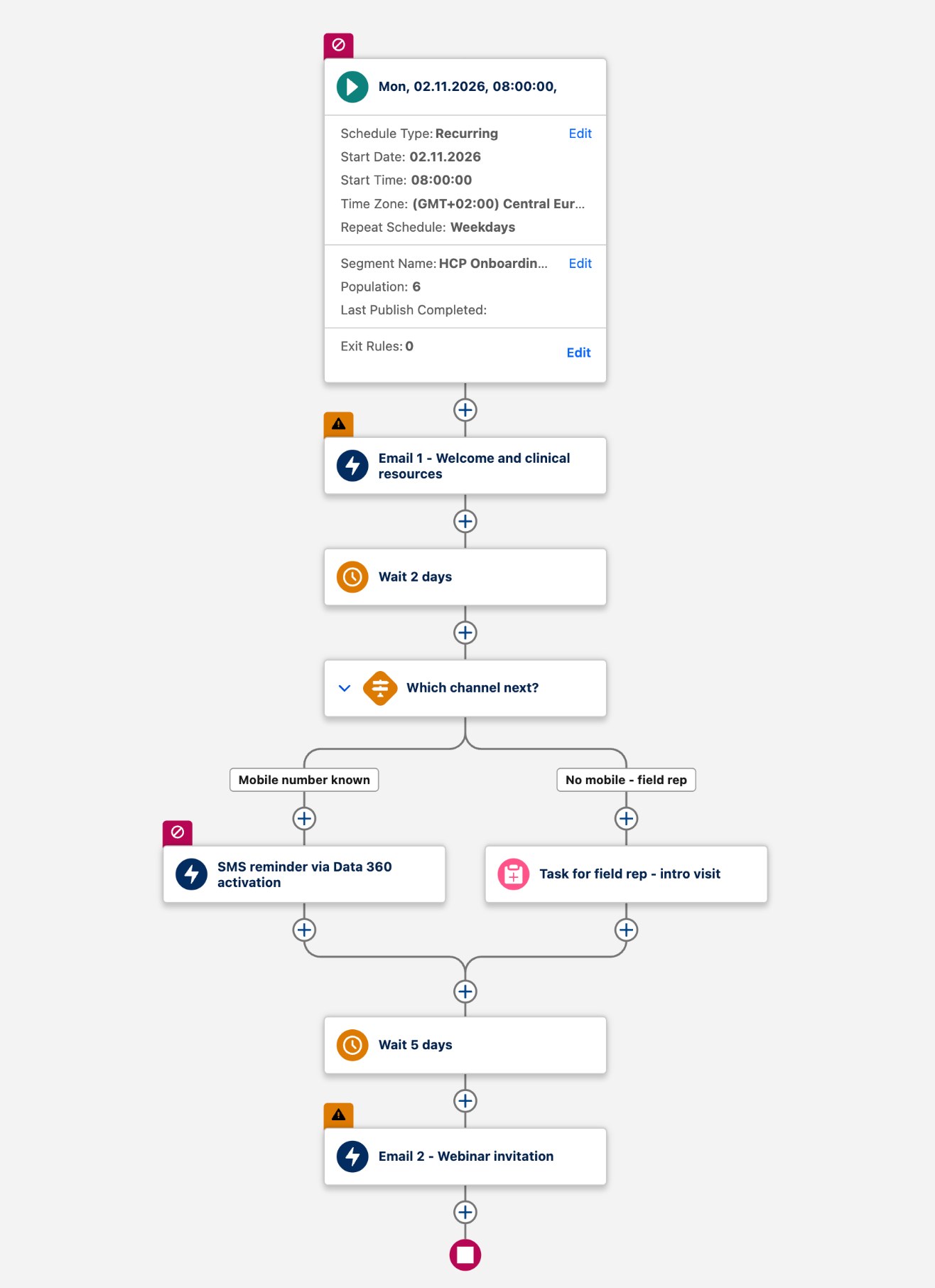
The two red markers on the canvas are honest open items, and both are worth knowing before you plan a project:
- Re-entry. “Never” or “after completion” as the re-entry setting needs the managed package Salesforce Data Cloud – Flow Integration. Without it, only “always” can be activated, which is the wrong choice for onboarding.
- SMS hand-off. The “Send to Data 360 Activation” step reports “Cannot find activation definition”, because the API-triggered activation behind it has never been published. In the developer org there is no way to publish it: the UI offers no publish button and refuses a full refresh before the first publish, and Trailblazer Community users report that the API publish is gated in Developer Edition orgs. Plan this step in a sandbox or production org with the right Data 360 entitlements.
Check and status of this build: the flow is saved as a draft. The email, wait, decision and task steps are configured. The flow is not activated, and the SMS step is blocked in the developer org (see the two open items above). No message was actually sent.
Step 7: Consent before go-live
Not built in the demo, but part of every production version, as the Trailhead unit points out: SMS consent sits at the phone number (and keyword) level; email needs the right suppression and publication lists per send; and every channel needs exit criteria on the consent attributes plus a filter on the entry audience.
What each role should take away
Heads of omnichannel and brand leads. The journey canvas took the least time. The decisions with real impact sit upstream: which source defines a doctor’s identity, which address counts, and what happens when a channel is missing. If nobody owns those rules, the journey automates the inconsistency.
Field force leads. The branch “no mobile, task for the field rep” is where digital and field meet. It only works if the task appears where reps already work, and if marketing can see which doctors have no digital route at all.
Architects. Never accept a suggested primary-key mapping unchecked. After every identity resolution run, look at matched source profiles and at the data sources in the unified link table, not only at the total.
How I’m learning this
I’m working through the Salesforce Data 360 Consultant certification. This article started from the Trailhead unit Personalize Your Omnichannel Journeys. I rebuilt every step in a developer org instead of only reading it. The data, matching and audience parts run. The journey is configured but not activated, because two steps need features a developer org does not have. The broken run taught more than the steps that worked.
Also: how to assess an existing Adobe Experience Platform setup, the same identity questions on the Adobe side; Salesforce Data 360 Zero Copy and Could this happen to us? on Data 360 governance.
Demo environment: Salesforce developer org, October 2026. All doctors, email addresses (reserved example domains) and phone numbers are fictional. The developer-org workaround in “Where it broke” is for demonstration; in a production org, map Lead ID directly. Salesforce, Data 360 and Marketing Cloud are trademarks of Salesforce, Inc.
Sources
- Trailhead — Personalize Your Omnichannel Journeys
- Trailblazer Community — Batch DMO activation publish in a Developer Edition org
- Own build in a Salesforce Data 360 developer org, 19 October 2026 (screenshots in this article)